
Enter the server URL, username, and password in separate fields. This method usually organizes Live TV, Movies, Series, and EPG automatically.
Gold IPTV · Setup Guide
Setup Guide
Pick your device below and follow the exact steps to install IPTV Smarters Pro and start streaming on Firestick, Android, iOS, Smart TV, MAG, Roku and more.
Updated2026
Coverage8 devices covered
SELECT YOUR PLATFORM
Select your device
Choose your device below to see every installation step and screenshot.
Fire OS
Fire TV Stick (FREE APPS)
How to setup IPTV on Fire TV Stick
Private login
- 01
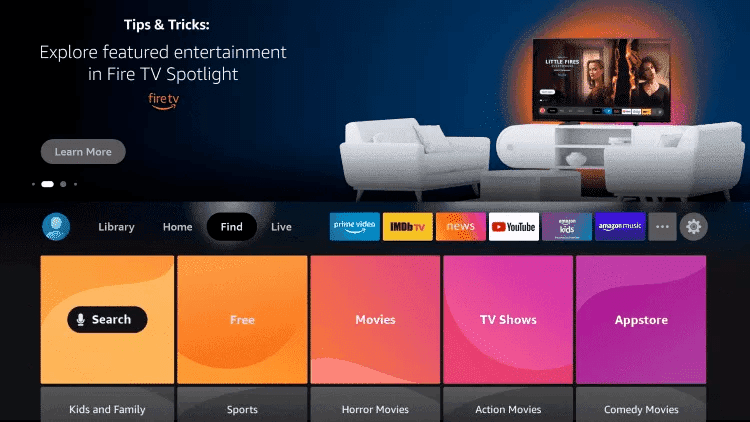
Find
From the home screen of your device, hover over the Find option.
- 02
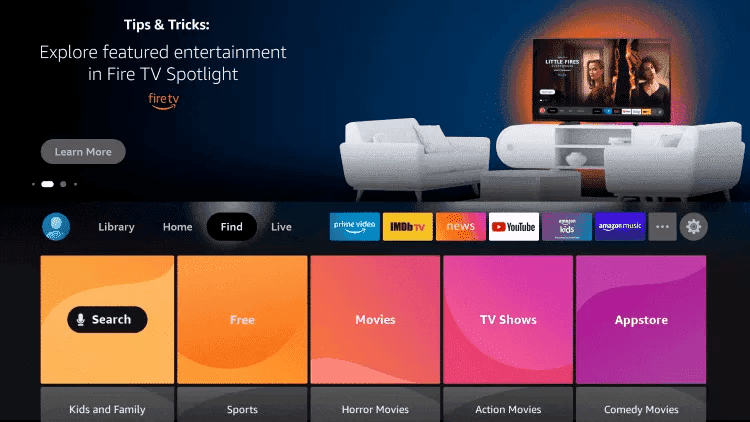
Search
Click Search.
- 03
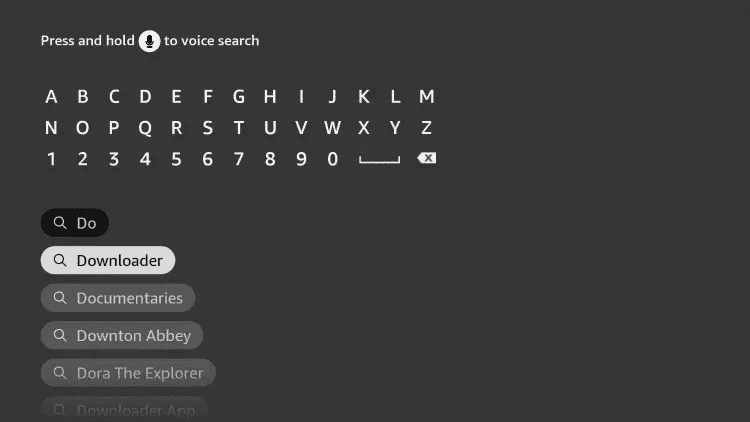
Search Downloader
Search for and select Downloader.
- 04
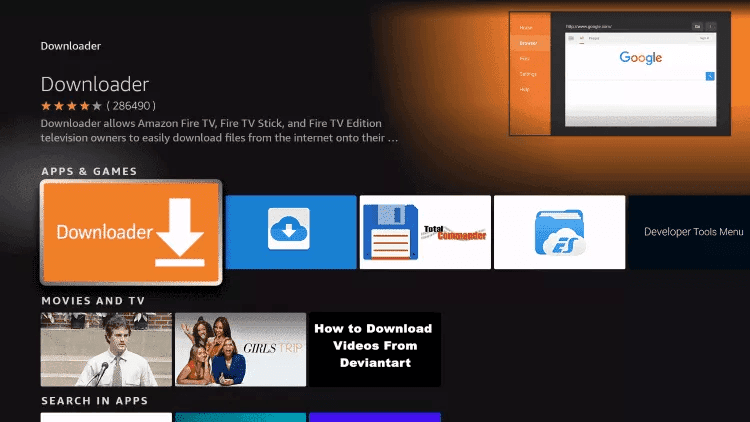
Choose Downloader
Choose the Downloader app.
- 05
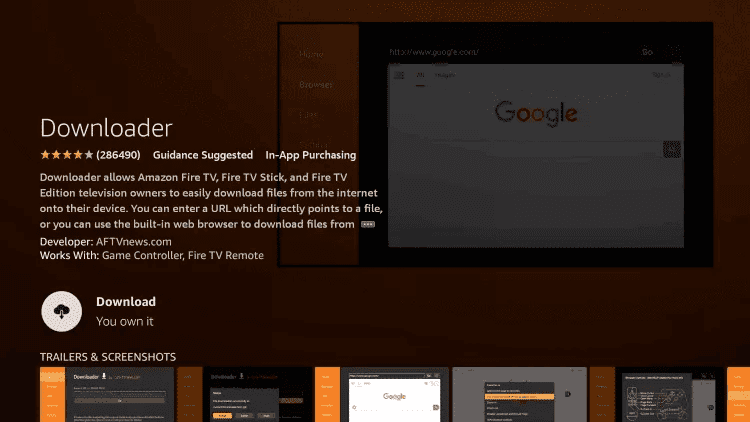
Download
Click Download.
- 06
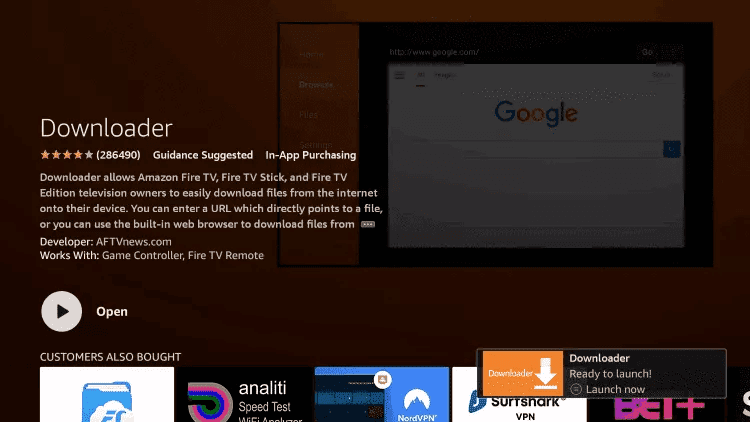
Open
Once the app finishes installing click Open.
- 07
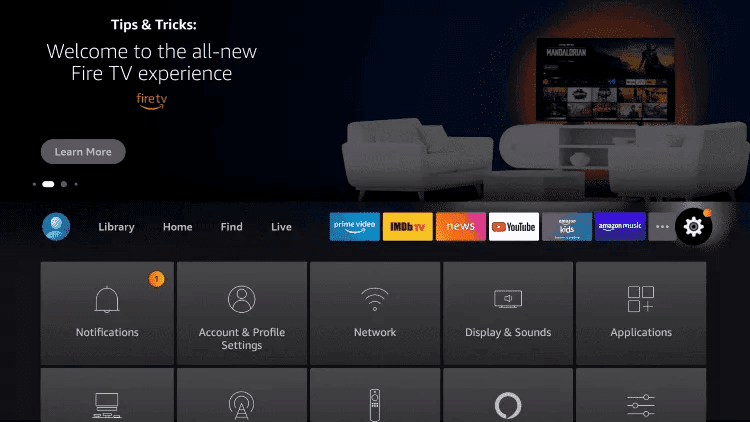
Open Settings
Return to the home screen and open Settings.
- 08
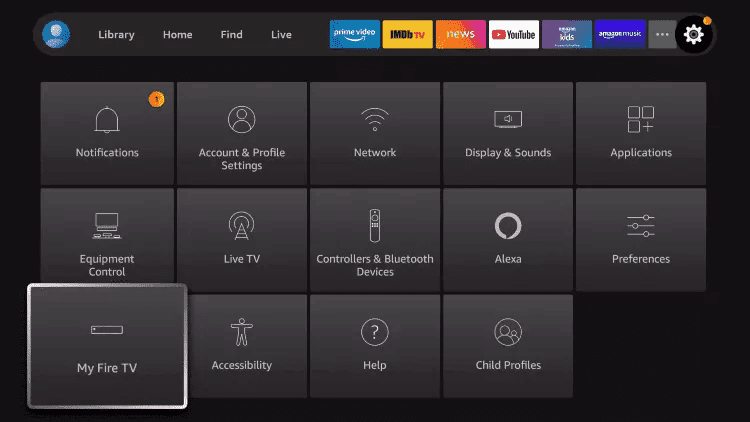
My Fire TV
Click My Fire TV.
- 09
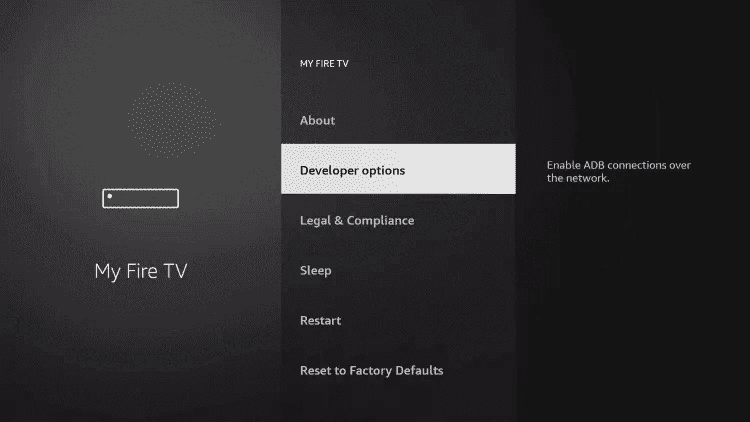
Developer options
Choose Developer options.
- 10
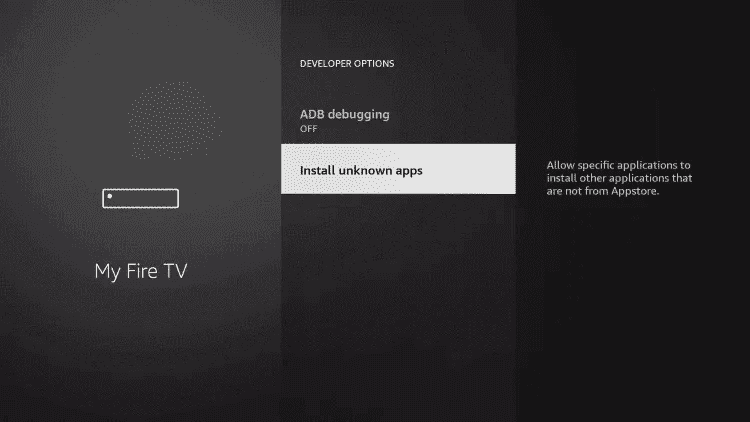
Install unknown apps
Click Install unknown apps.
- 11
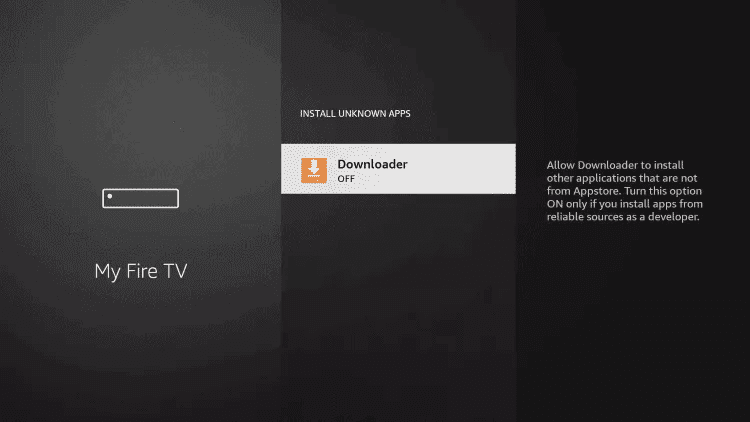
Select Downloader
Find the Downloader app and click it.
- 12
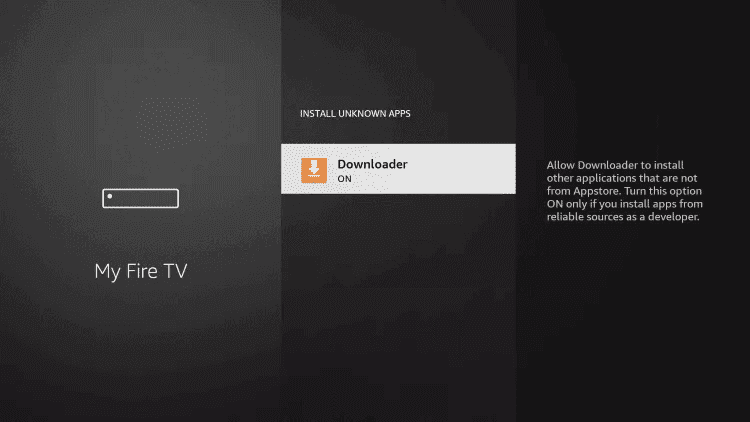
Turn Unknown Sources on
This will turn Unknown Sources to On for the Downloader app. This will enable side-loading on your device.
- 13
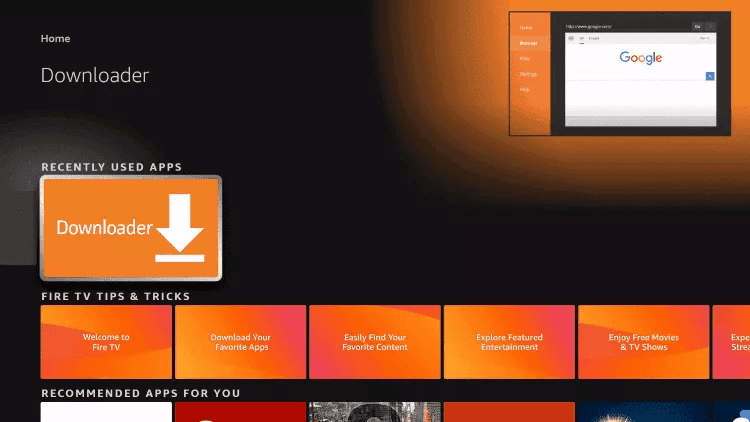
Launch Downloader
Launch Downloader.
- 14
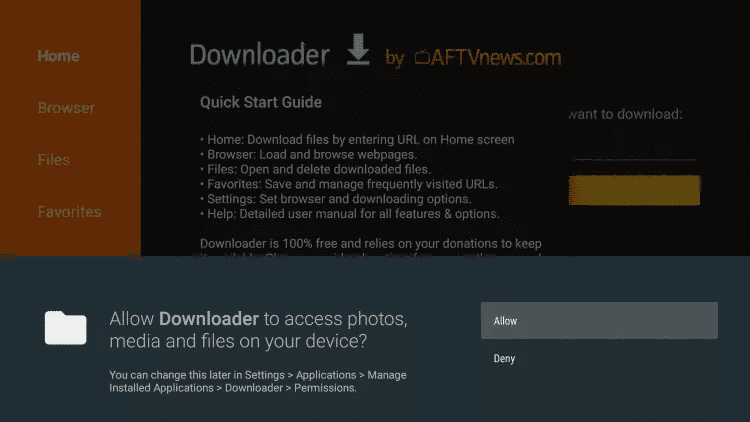
Allow
Click Allow.
- 15
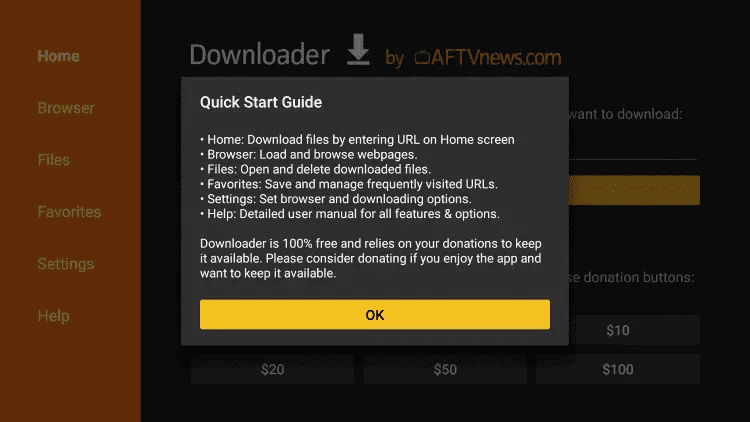
Confirm
Click OK.
- 16
Enter the code
Type the following URL exactly as shown here: 78522 Then click Go.
- 17
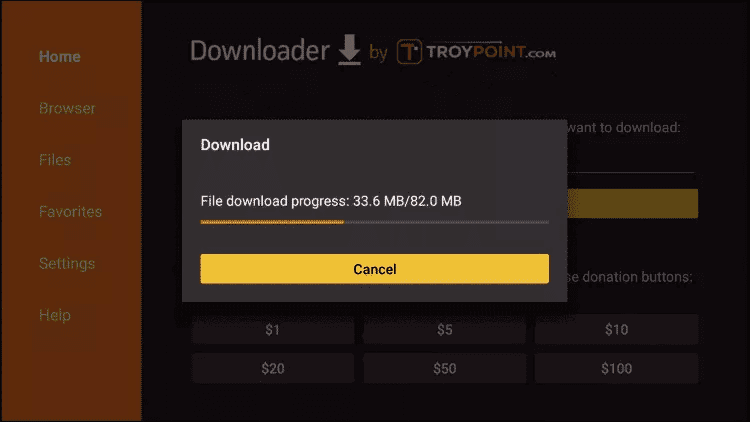
Wait for the download
Wait for file to download.
- 18
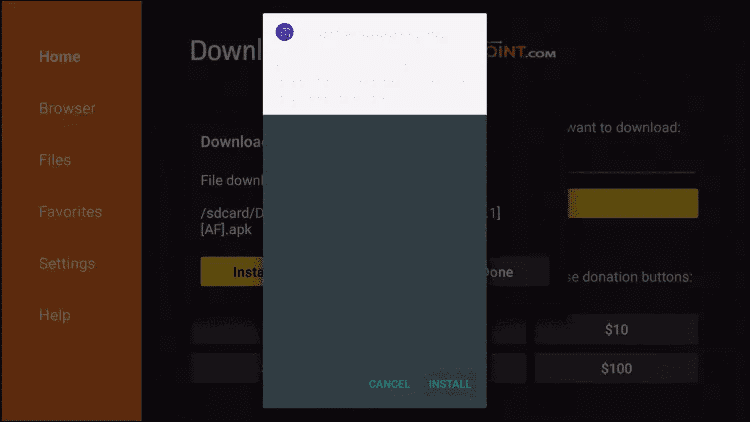
Install
Click Install.
- 19
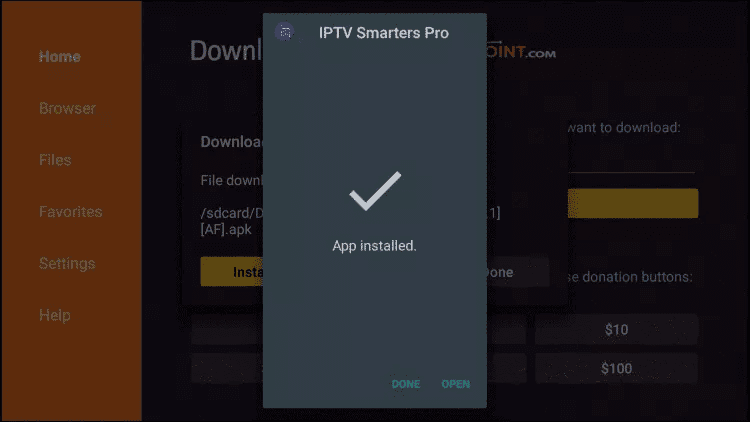
Done
Click Done.
ALTERNATIVE PLAYER
Install TiviMate on Fire TV Stick
- 01
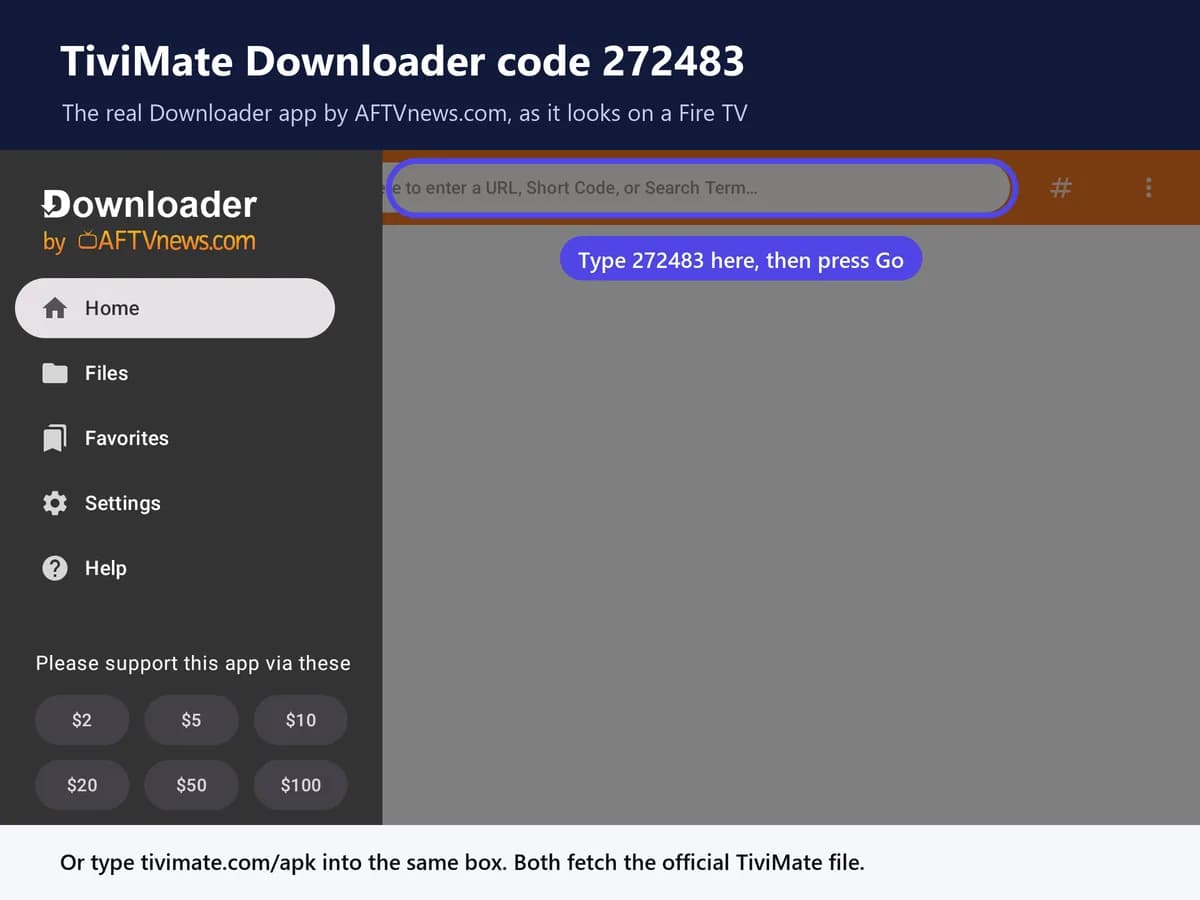
Enter the TiviMate code
Type the official TiviMate Downloader code exactly as shown here: 272483 and click Go.
- 02
Wait for the file
Wait for file to download.
- 03
Install the app
Click Install and once the installation is completed. You can open the app.
- 04
Add Playlist
Click “Add Playlist” then choose “Xtream codes“.
- 05
Enter your login
Enter the login details that we sent you via Email. Please make sure you read the email we send correctly.
THE APP IS ONLY HALF OF IT
IPTV Smarters is empty until you add a service.
The app installs free, but it needs a subscription with an M3U or Xtream Codes login before a single channel appears.
Paste the complete private playlist URL when the player asks for M3U. Keep the entire URL confidential because it contains account access.
FIRST PLAYBACK CHECK
Before changing advanced settings
- Confirm the subscription is active
- Check the server URL and port
- Remove accidental spaces from credentials
- Wait for the initial EPG sync
- Test a standard HD channel
- Compare Wi-Fi with Ethernet
Setup questions
Frequently asked questions.
Is IPTV Smarters Pro free?
The app itself is free to download. To watch, you need an active IPTV subscription — the app is only the player.
Which devices does it work on?
Fire TV Stick, Android phones and TV boxes, iPhone and iPad, Apple TV, Samsung and LG Smart TVs, Windows, Mac, MAG boxes and Roku.
How do I log in?
Open the app, select Login with Xtream Codes API, and enter the username, password and server URL sent in your Gold IPTV welcome email.
Do I need a subscription?
Yes. IPTV Smarters Pro does not include channels. You need an active Gold IPTV subscription before anything will play.
It installed but won’t play — why?
Check that your subscription is active, re-enter the server URL, username and password exactly, and restart both the app and your router. If the problem continues, contact support with your device model.
Next step
Got the app? Now get the channels.
Choose your Gold IPTV plan, receive your login details, and start watching on your preferred device.